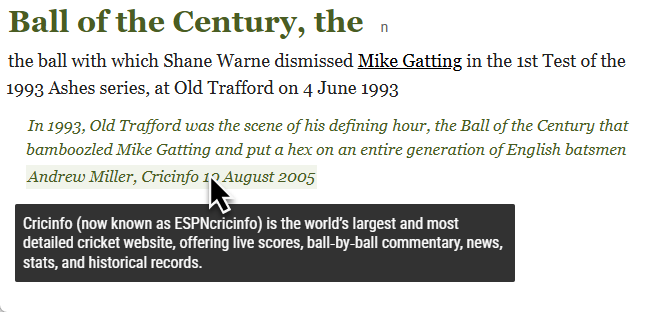
An element in the dictionary entry can be coverted into a clickable link. The link can point to another dictionary entry or to a webpage on the internet.
An element can also have a tooltip that will be displayed on mouseover (when the user moves the mouse over the element.)
The link or tooltip can be applied only on the whole element content, e.g. on the whole definiton or the whole example sentence. To apply it on only a part of the element, use a highlight (also called markup) and apply the link or tooltip on the highlight.
Links and URLs
- First, ensure that the entry structure contains an element with type URL. This element will hold the actual URL. The URL element must be the child of the element onto which it will be applied.
- Then, apply the URL on the parent element in Configure – Formatting.
Examples of the structure
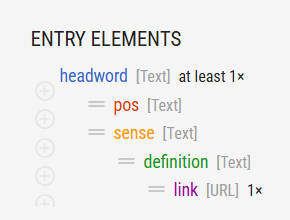
The link can be applied to any element. In this example, the link will be applied on definition.
This is an example of an entry structure with a URL type of element. For the sake of practicality, place the URL element (called link in this example) together with the element to which it will be applied. However, it can be placed anywhere else in the entry. There is no difference in function. Both of these structures will serve the same purpose.
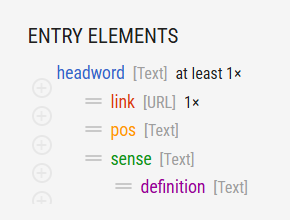
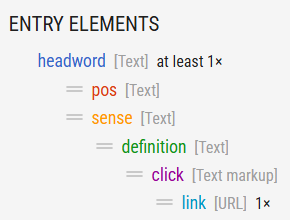
To apply the link only on a part of the definition, insert a markup element and apply the URL on it. The URL element can be located anywhere in the structure.
Apply formatting
- go to Configure – Formatting
- select the element to apply the URL to (
definitionin this example) - in the STYLE panel go to OTHER and select the element which contains the URL (
linkin this example)
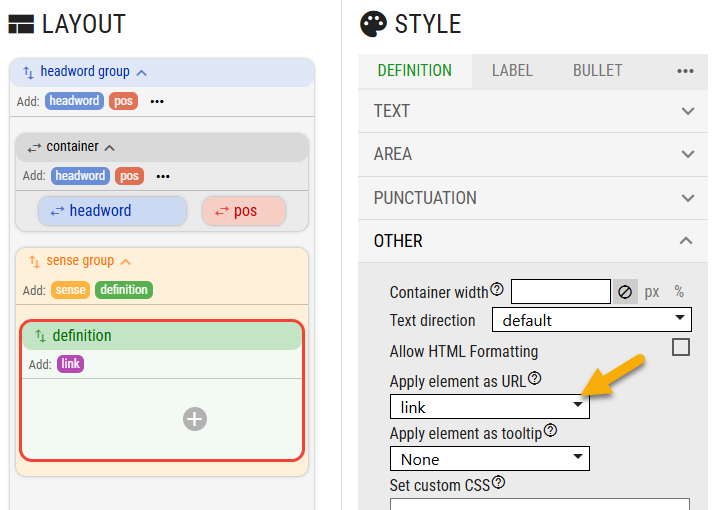
The URL will be applied to the whole content of the element definition and the result will look like this:
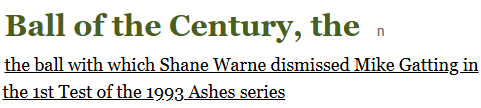
To apply a URL to only certain part of the text, use a highlight and apply the URL on the highlight.
You can apply both a URL and a tooltip on the same element.
Tooltips
Applying tooltips to elements is similar to applying a url. Any element whose type is text can be used as a tooltip. The element must be a direct or indirect child of the element onto which it should be applied. In this structure, citations can use s, mouseover or text as a tooltip. But citations cannot use click, link or tooltip as a tooltip because they are not children of citations.
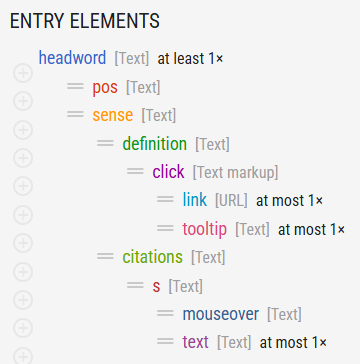
To apply a tooltip to an element:
- go to CONFIGURE – FORMATTING
- select the element which should have a tooltip
- on the STYLE panel go to OTHER
- select the element that contains the tooltip
The tooltip is applied on the whole element. To apply the tooltip only on certain words in the element, use a highlight and apply the tooltip on the highlight. Here, the tooltip was applied on the content of the source element.
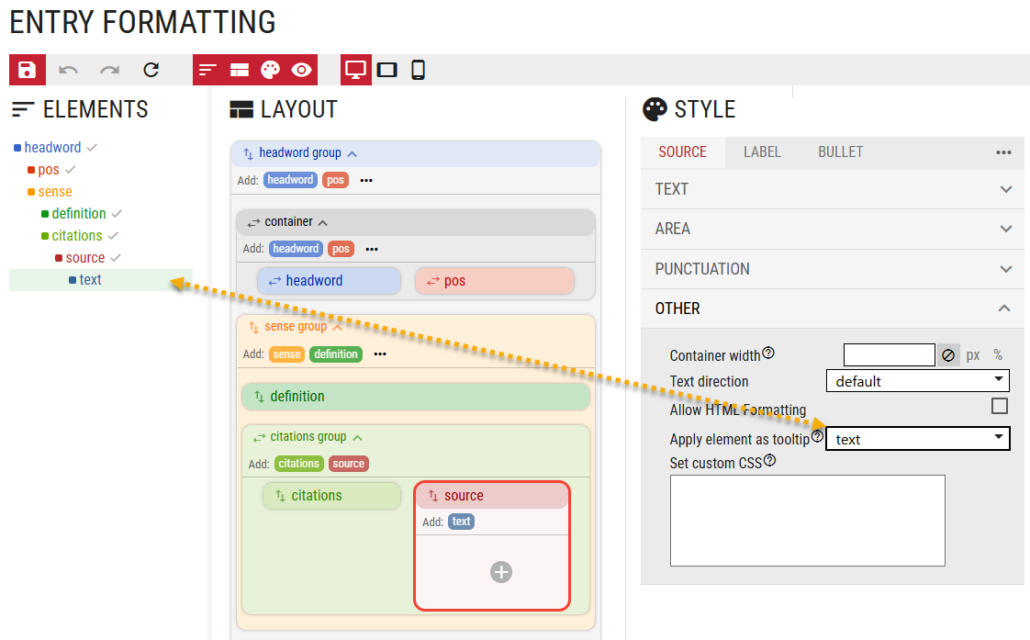
The result looks like this. If the user hovers the mouse over the source element, the tooltip is displayed.