
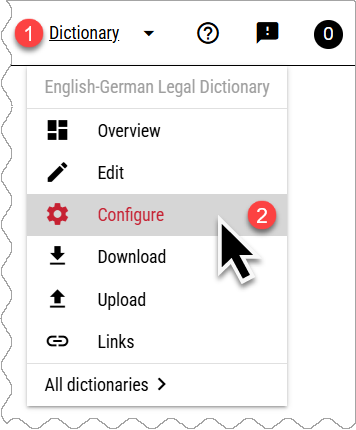
Set the name, description, main language and text direction.
Create and edit the entry structure.
Grant access to the dictionary for other users and set their permissions.
Activate progress tracking to see the number of completed entries.
Set up relations between entries and elements.
Set the dictionary as privte or public. Upload the dictionary logo. Add and edit custom pages with dictionary information.
Set the look (colours, fonts, sizes…) for publishing the dictionary in the Lexonomy.
Set the headword element, change its appearance, set the unique headword URL format.
Set element to include in searches. Set search templates.
Set which elements should be searched. Set search templates.
Set a custom URL for your dictionary.
Set up editorial flags to label or categorize entries.
Customize the editor, set elements as hidden or collapsed.
Set custom CSS styles for Lexonomy. (This is not the dictionary formatting.)
Set up the connection between your dictionary and a corpus in Sketch Engine to retrieve corpus data.
Configure services for automatic image search and import.
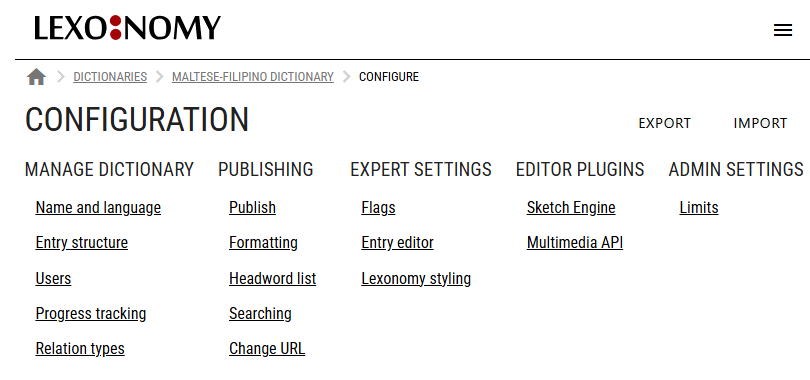
MANAGE DICTIONARY
Name and language
Change the dictionary, name, description and the main dictionary language.
Entry structure
Create and edit the entry structure. Set the elements which the dictionary entries can or should contain. Set conditins and restrictions for them. more»
Users
Select users who have access to the dictionary and thier viewing and editing permissions. Public dictionaries can be viewed by anyone, including people without a Lexonomy account.
Progress tracking
When active, progress tracking allows marking entries as complete in order to monitor the editorial progress.
Relation types
Set up the relations for your dictionary. Relations are used to indicate links or connections between entries or their elements. For example, an entry for a phrase can be linked to one or more headwords it contains. more»
PUBLISHING
These parameters control how the dictionary is displayed in the Lexonomy viewer only. If the dictionary is exported, these settings are not included.
Publish
Change the status to published to make the dictionary visible (but not editable) for everyone on the selected URL. Set up custom pages with information about the dictionary such as the imprint page, sources, information about the author or acknowledgements. more»
Formatting
Choose the fonts, colours, sizes, bullets and layout used when publishin the dictionary in Lexonomy. more»
Headword list
Customise the look and content of the headword list displayed on the left of the screen. Set the format of the unique enry URLs. Set the sorting order. more»
Searching
Customise the elements which are searched by the search function. By default, only the headword is included in the search. Include more elements for fulltext search. more»
Change URL
By default, the dictionary will be published on an automatically generated url. Use this menu to customise the url.
EXPERT SETTINGS
Flags
Set up flags (or editorial labels) to label or categorize entries into categories such as complete, review needed, missing information etc.
Entry editor
Customize the entry editor: hide elements in the editor or set them as collapesed for more productivity. Create your own widgets (specialized editing screens) for specific editorial tasks.
Lexonomy styling
Change the colours fonts and sizes of Lexonomy. This does not set the look of the entries. Use Formatting instead.