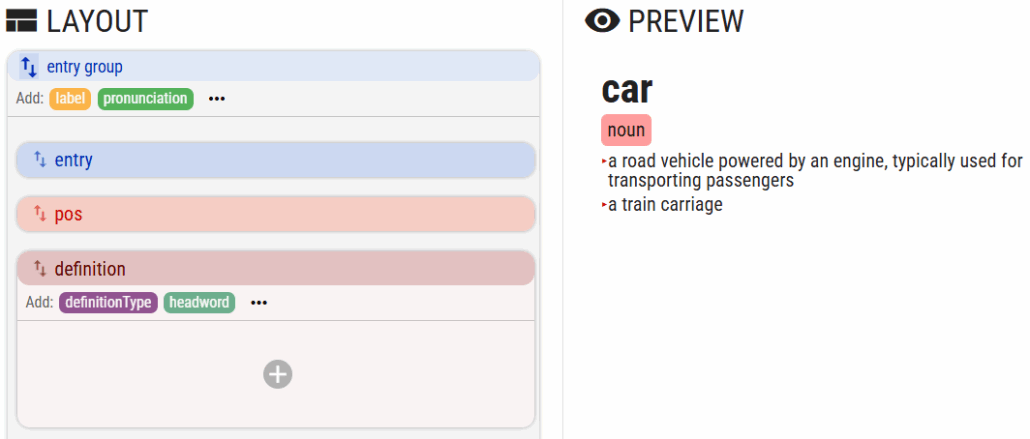
To start editing a new layout, go to DICTIONARY > CONFIGURE > FORMATTING By default, the layout only includes the element which is configured as the element containing the headword (DICTIONARY > CONFIGURE > HEADWORD LIST). The preview only shows the headword. Start with one of these actions:
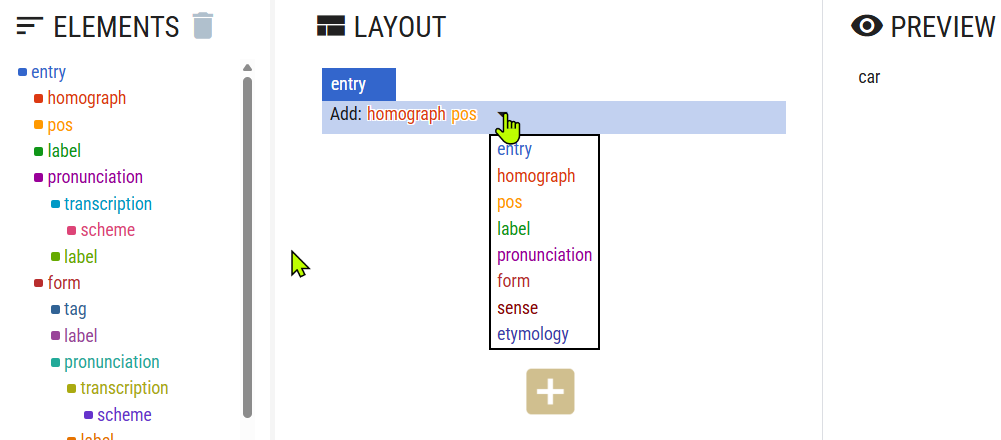
Option 1
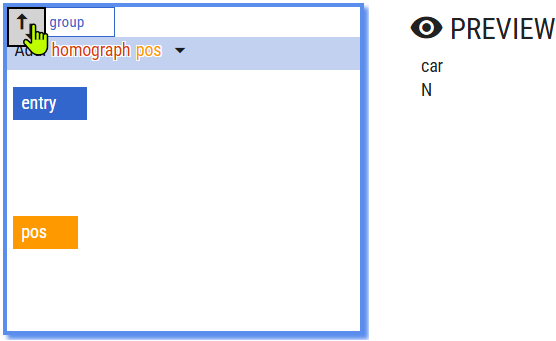
Clicking pos will create an entry group with two elements: entry and pos. They are organized vertically. The preview shows the entry and pos under it. Click ⇅ to change it to horizontal.
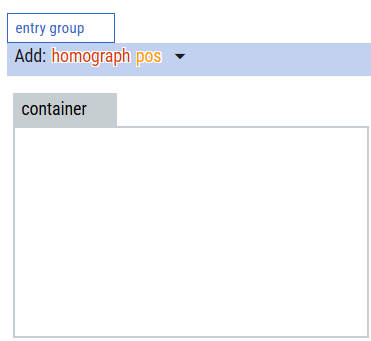
Option 2
Clicking the plus will insert an empty container. The preview is empty because no elements are present in the layout. Any element from ELEMENTS can be dragged and dropped into the container.
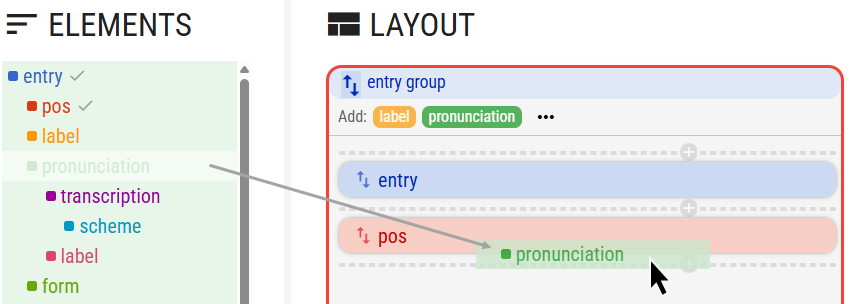
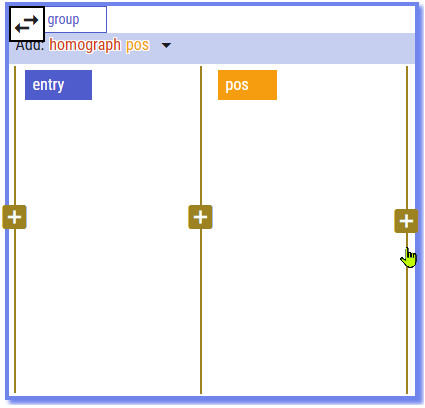
To add additional elements, select them from the dropdown list or drag and drop them from the ELEMENTS panel. Hover your mouse over the layout to see where elements or containers can be inserted. A vertically organized group or container only allows placement above, between or below elements. A horizontally organized container or group only allows placement to the left, between, or to the right of each element.
adding an element by dragging it from the ELEMENTS panel, it can also be added by clicking the entry group menu, the plus signs indicate places for inserting the element or a new container
adding a container into another container or group organized horizontally
If the newly inserted element has child elements, a drop-down menu will appear for inserting them. This example shows a very simple layout with three elements only organized vertically. (Some basic styling was used for clarity.) The entry shows two definitions because the entry data contain two definitions. Even if the element appears only once in the layout design, it will always display all the values found in the entry data.Example