This page gives information about formatting the dictionary for publishing and display in Lexonomy only. If the data are exported to publishethem elsewhere, the format and layout settings will not be applied. See separation of content and presentation.
Styling and formatting
Colours, fonts, sizes, borders, spacing
Use the STYLE panel of the Layout editor to set colours, fonts, sizes, borders, spacing and other parameters of elements.
- select the element in panel A, B or D
- display (6) the STYLE panel (C) if not visible already
- set the parameters (5)
- save the layout
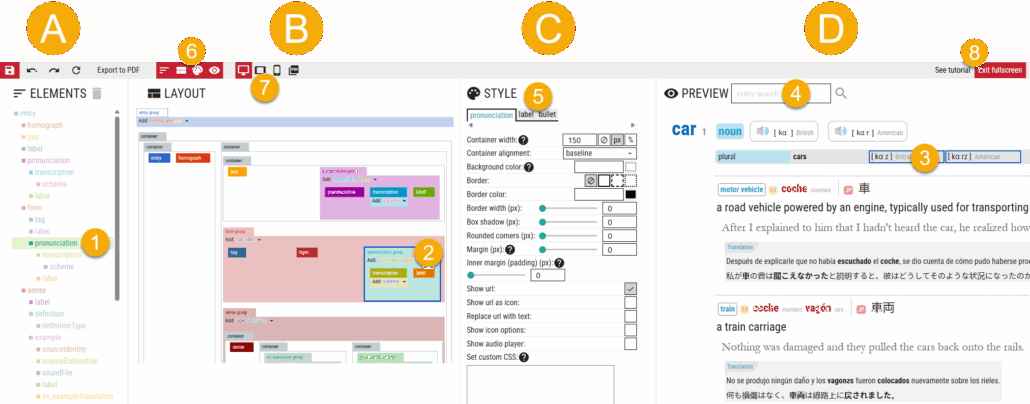
A detailed description fo the layout editor is on a spearate page.
STYLE panel
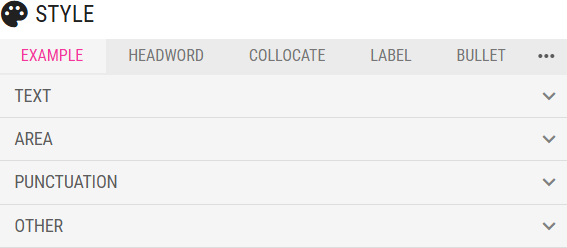
The STYLE panel (5) has a row of tabs at the top, consisting of:
- the name of the selected element (EXAMPLE in this case)
- the names of markup elements (only if markup exists, HEADWORD and COLLOCATE in this case)
- the LABEL and BULLET tabs
Each tab is divided into 4 areas:
- TEXT – to set the text colour, size and font
- AREA – to set the container colour, border, space around and space inside
- PUNCTUATION – to set brackets, quotation marks and other characters before or after
- OTHER – to set the width, tooltip, hyperlink or to input custom CSS
TEXT
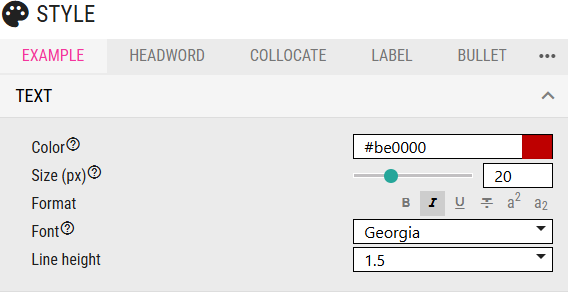
Text settings are inherited by child elements. Settings applied here will also be applied on all child elements. In this example, the text is set to dark red, the size is 20 pixels, the text is in italics, the font is Georgia and the space between the lines is increased to 1.5 of the regular space.
Set overall font size
The text parameters (size, colour, italics, bold…) are inherited by children, and other descendants, from their parent. To set the base text parameters, select the topmost group/container and set the text parameters. All other elements will now have these text parameters. Then you can then change the font sizes of elements that should be displayed differently.
Later, if the dictionary text parameters needs changing, edit the topmost group/container. However, specific parameters were set for some elements, their look will not change automatically and they have to be edited manually.
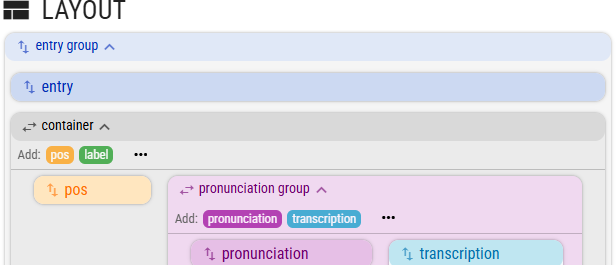
The entry group is the topmost group (container) in this layout. Use it to set the base text parameters for all elements.
AREA
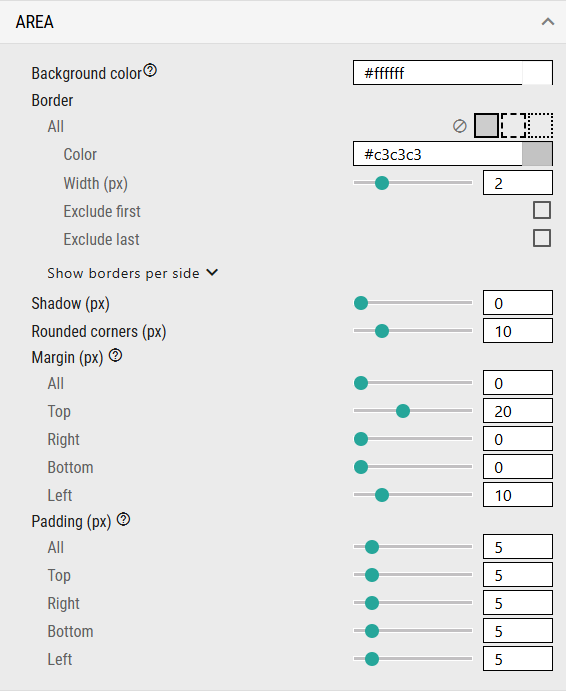
In this example, the background of the element is white (delete the value to make it transparent). The border style is a solid line, the colour of the border is grey, the width is 2 pixels. Borders can be set for each side separately, but are not in this example. Use Exclude first/last in order not to apply the styling on the first or last element. This si useful when placing horizontal after each element, e.g. a sense, but prevent the line to be after the last sense.
The element will have rounded corners, 20 pixels of empty space above the element and the element will be indented by 10 pixels from the left. There will be 5 pixels of empty space on all sides between the border of the element and its content.
PUNCTUATION
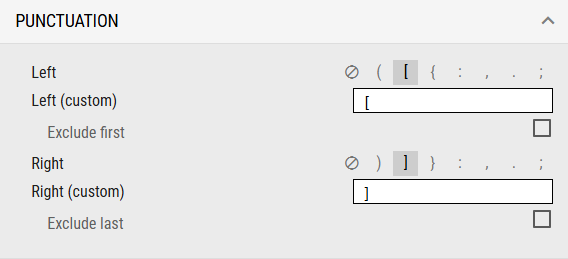
Pick one of the characters or type your own. The character(s) will be shown before/after the element content. This is useful, for example, to show pronunciation in brackets or to place quotation marks around citations. Any unicode character can be used. One or more characters can be used. The punctuation cannot be styled differently from the content. Use LABEL if different styling is required.
OTHER
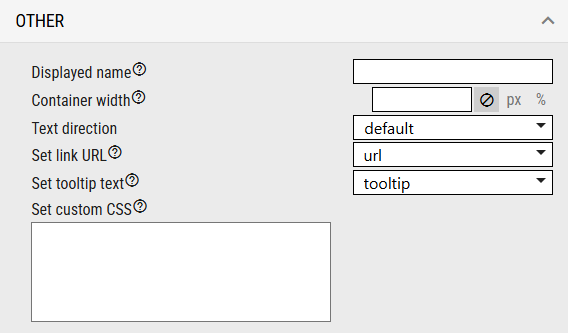
Displayed name – allows the element to be renamed in this layout editor only. Setting a more user-friendly name can make editing complex layout easier. It does not change the dictionary data.
Container width — sets the size of the element in pixels or in the percentage of the parent element/container. E.g. 50% sets the width to the half of the parent container.
Text direction – used for right-to-left languages
Set link URL – if the element has one or more children whose type is URL, this sets which element will be used when the user clicks on the element. See tooltips and links.
Set tooltip text – if the element has one or more children whose type is “text”, the content of the element can be displayed as a tooltip when the user points the mouse to the element. See tooltips and links.
LABEL tab
The LABEL tab allows setting a label for the element. For example, each example sentence can have “example” displayed at the beginning. Or each American pronunciation can have “American” displayed before the pronunciation. Any unicode character can be used, for example ➽, ⬤, or ⯀. The label can be styled independently of the element using all four panels: TEXT, AREA, PUNCTUATION, OTHER.
In the example from the Dictionary of Cricket, each in-depth explanation has “BACKGROUND” label which has its own font colour, font size, background and corner rounding.
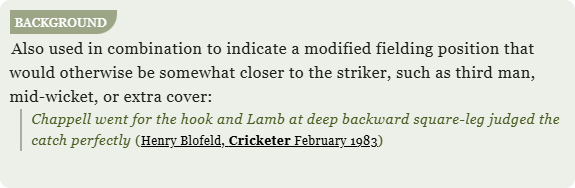
To make only one corner round, insert this CSS into the Custom CSS box in the OTHER section border-radius: 0px 0px 20px 0px;
BULLET tab
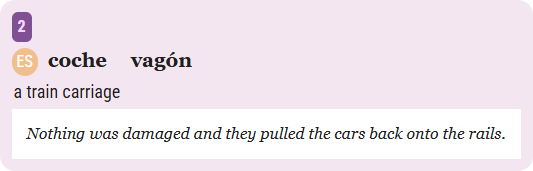
The BULLET tab inserts numbering – 1,2,3… a) b) c)… or similar. In the example, the sense number “2” is inserted via a bullet. Numbers are inserted automatically according to the number of senses. The bullet can be formatted independently from the content. The display of the bullet can be disabled if the element only appears once. For example, if an entry has only one sense, the number can be disabled.
The BULLET tab also contains an option to insert a regular bullet that does not change such as ➽, ⬤, or ⯀. Any unicode character can be used.
NB: The “ES” is not a bullet but a LABEL. A label is a fixed text that does not change.
Use LABELS for fixed text, use BULLET for numbering.